As a result of the recent changes to Google Labs and App Inventor, effective immediately, the URL for App Inventor will change from appinventor.googlelabs.com to appinventorbeta.com. This URL change WILL NOT have an impact on your projects stored in App Inventor. All data that you see in your appinventor.googlelabs.com account, as well as documentation and email forums will be available at appinventorbeta.com.
As Google announced on the App Inventor Announcement Forum, Google will end support for App Inventor and open source the code base at the end of this year. Additionally, in order to ensure the future success of App Inventor, Google has funded the establishment of aCenter for Mobile Learning at the MIT Media Lab, where MIT will be actively engaged in studying and extending App Inventor. This transition will happen at the end of 2011. At that time you will need to download your data from appinventorbeta.com in order to continue working with it in the open source instance of App Inventor. In the coming months we will send you detailed instructions on how to download your data.
Wednesday, August 31, 2011

Monday, August 29, 2011
path.addArc()

package com.exercise.AndroidDraw;


import android.app.Activity;

import android.content.Context;

import android.graphics.Canvas;

import android.graphics.Color;

import android.graphics.Paint;

import android.graphics.Path;

import android.graphics.RectF;

import android.os.Bundle;

import android.view.View;


public class AndroidDrawActivity extends Activity {


	/** Called when the activity is first created. */

    @Override

    public void onCreate(Bundle savedInstanceState) {

        super.onCreate(savedInstanceState);

        setContentView(new MyView(this));

    }


    public class MyView extends View {


		public MyView(Context context) {

			super(context);

			// TODO Auto-generated constructor stub

		}


		@Override

		protected void onDraw(Canvas canvas) {

			// TODO Auto-generated method stub

			super.onDraw(canvas);


			float width = (float)getWidth();

			float height = (float)getHeight();

			float radius;


			if (width > height){

				radius = height/4;

			}else{

				radius = width/4;

			}


			Paint paint = new Paint();

			paint.setColor(Color.WHITE);

			paint.setStrokeWidth(5);

			paint.setStyle(Paint.Style.STROKE);


			Path path = new Path();


			float center_x, center_y;

			center_x = width/4;

			center_y = height/4;

			final RectF oval = new RectF();

			oval.set(center_x - radius,

					center_y - radius,

					center_x + radius,

					center_y + radius);

			path.addArc(oval, 0, 90);


			center_x = width/2;

			center_y = height/2;

			oval.set(center_x - radius,

					center_y - radius,

					center_x + radius,

					center_y + radius);

			path.addArc(oval, -90, 180);


			center_x = width * 3/4;

			center_y = height * 3/4;

			oval.set(center_x - radius,

					center_y - radius,

					center_x + radius,

					center_y + radius);

			path.addArc(oval, 0, 360);


			canvas.drawPath(path, paint);


		}


	}

}
Saturday, August 27, 2011
Free ebook: Programming Windows Phone 7, by Charles Petzold

This book is a gift from the Windows Phone 7 team at Microsoft to the programming community. Showing you the basics of writing applications for Windows Phone 7 using the C# programming language with the Silverlight and XNA 2D frameworks.
You can download a PDF here (38.6 MB).
And, as of August 1, 2011, you can now download an EPUB version here and a MOBI version here.
Friday, August 26, 2011
canvas.drawRoundRect()

package com.exercise.AndroidDraw;


import android.app.Activity;

import android.content.Context;

import android.graphics.Canvas;

import android.graphics.Color;

import android.graphics.Paint;

import android.graphics.Path;

import android.graphics.RectF;

import android.os.Bundle;

import android.view.View;


public class AndroidDrawActivity extends Activity {


	/** Called when the activity is first created. */

    @Override

    public void onCreate(Bundle savedInstanceState) {

        super.onCreate(savedInstanceState);

        setContentView(new MyView(this));

    }


    public class MyView extends View {


		public MyView(Context context) {

			super(context);

			// TODO Auto-generated constructor stub

		}


		@Override

		protected void onDraw(Canvas canvas) {

			// TODO Auto-generated method stub

			super.onDraw(canvas);


			float width = (float)getWidth();

			float height = (float)getHeight();

			float radius;


			if (width > height){

				radius = height/4;

			}else{

				radius = width/4;

			}


			Paint paint = new Paint();

			paint.setColor(Color.WHITE);

			paint.setStrokeWidth(5);


			paint.setStyle(Paint.Style.FILL);

			float center_x, center_y;

			center_x = width/4;

			center_y = height/4;

			final RectF rect = new RectF();

			rect.set(center_x - radius,

					center_y - radius,

					center_x + radius,

					center_y + radius);

			canvas.drawRoundRect(rect, 50, 50, paint);


			paint.setStyle(Paint.Style.STROKE);

			center_x = width/2;

			center_y = height/2;

			rect.set(center_x - radius,

					center_y - radius,

					center_x + radius,

					center_y + radius);

			canvas.drawRoundRect(rect, 100, 50, paint);


			paint.setStyle(Paint.Style.STROKE);

			center_x = width * 3/4;

			center_y = height * 3/4;

			rect.set(center_x - radius,

					center_y - radius,

					center_x + radius,

					center_y + radius);

			canvas.drawRoundRect(rect, 100, 100, paint);


		}


	}

}
Thursday, August 25, 2011
canvas.drawArc()

package com.exercise.AndroidDraw;


import android.app.Activity;

import android.content.Context;

import android.graphics.Canvas;

import android.graphics.Color;

import android.graphics.Paint;

import android.graphics.Path;

import android.graphics.RectF;

import android.os.Bundle;

import android.view.View;


public class AndroidDrawActivity extends Activity {


	/** Called when the activity is first created. */

    @Override

    public void onCreate(Bundle savedInstanceState) {

        super.onCreate(savedInstanceState);

        setContentView(new MyView(this));

    }


    public class MyView extends View {


		public MyView(Context context) {

			super(context);

			// TODO Auto-generated constructor stub

		}


		@Override

		protected void onDraw(Canvas canvas) {

			// TODO Auto-generated method stub

			super.onDraw(canvas);


			float width = (float)getWidth();

			float height = (float)getHeight();

			float radius;


			if (width > height){

				radius = height/4;

			}else{

				radius = width/4;

			}


			Path path = new Path();

			path.addCircle(width/2,

					height/2, radius,

					Path.Direction.CW);


			Paint paint = new Paint();

			paint.setColor(Color.WHITE);

			paint.setStrokeWidth(5);


			paint.setStyle(Paint.Style.FILL);

			float center_x, center_y;

			center_x = width/2;

			center_y = height/4;

			final RectF oval = new RectF();

			oval.set(center_x - radius,

					center_y - radius,

					center_x + radius,

					center_y + radius);

			canvas.drawArc(oval, 90, 270, true, paint);


			paint.setStyle(Paint.Style.STROKE);

			center_x = width/2;

			center_y = height/2;

			oval.set(center_x - radius,

					center_y - radius,

					center_x + radius,

					center_y + radius);

			canvas.drawArc(oval, 90, 270, true, paint);


			paint.setStyle(Paint.Style.STROKE);

			center_x = width/2;

			center_y = height * 3/4;

			oval.set(center_x - radius,

					center_y - radius,

					center_x + radius,

					center_y + radius);

			canvas.drawArc(oval, 90, 270, false, paint);


		}


	}

}
Canvas.drawTextOnPath on circle path

package com.exercise.AndroidDraw;


import android.app.Activity;

import android.content.Context;

import android.graphics.Canvas;

import android.graphics.Color;

import android.graphics.Paint;

import android.graphics.Path;

import android.os.Bundle;

import android.view.View;


public class AndroidDrawActivity extends Activity {


	/** Called when the activity is first created. */

    @Override

    public void onCreate(Bundle savedInstanceState) {

        super.onCreate(savedInstanceState);

        setContentView(new MyView(this));

    }


    public class MyView extends View {


		public MyView(Context context) {

			super(context);

			// TODO Auto-generated constructor stub

		}


		@Override

		protected void onDraw(Canvas canvas) {

			// TODO Auto-generated method stub

			super.onDraw(canvas);


			float width = (float)getWidth();

			float height = (float)getHeight();

			float radius;


			if (width > height){

				radius = height/4;

			}else{

				radius = width/4;

			}


			Path path = new Path();

			path.addCircle(width/2,

					height/2, radius,

					Path.Direction.CW);


			Paint paint = new Paint();

			paint.setColor(Color.WHITE);

			paint.setStrokeWidth(5);

			paint.setStyle(Paint.Style.STROKE);

			paint.setTextSize(37);


			canvas.drawTextOnPath(

					"Android-er http://android-er.blogspot.com/",

					path, 0, 0,

					paint);


			paint.setColor(Color.GREEN);

			paint.setStyle(Paint.Style.FILL);

			canvas.drawTextOnPath("Android-er http://android-er.blogspot.com/",

					path, 0, 0,

					paint);

		}

	}

}
drawPath() on Canvas

package com.exercise.AndroidDraw;


import android.app.Activity;

import android.content.Context;

import android.graphics.Canvas;

import android.graphics.Color;

import android.graphics.Paint;

import android.graphics.Path;

import android.os.Bundle;

import android.view.View;


public class AndroidDrawActivity extends Activity {


	/** Called when the activity is first created. */

  @Override

  public void onCreate(Bundle savedInstanceState) {

      super.onCreate(savedInstanceState);

      setContentView(new MyView(this));

  }


  public class MyView extends View {


  	class Pt{

  		float x, y;


  		Pt(float _x, float _y){

  			x = _x;

  			y = _y;

  		}

  	}


  	Pt[] myPath = { new Pt(100, 100),

  					new Pt(200, 200),

  					new Pt(200, 500),

  					new Pt(400, 500),

  					new Pt(400, 200)

  					};


		public MyView(Context context) {

			super(context);

			// TODO Auto-generated constructor stub

		}


		@Override

		protected void onDraw(Canvas canvas) {

			// TODO Auto-generated method stub

			super.onDraw(canvas);


			Paint paint = new Paint();

			paint.setColor(Color.WHITE);

			paint.setStrokeWidth(3);

			paint.setStyle(Paint.Style.STROKE);

			Path path = new Path();


			path.moveTo(myPath[0].x, myPath[0].y);

			for (int i = 1; i < myPath.length; i++){

				path.lineTo(myPath[i].x, myPath[i].y);

			}

			canvas.drawPath(path, paint);


		}


	}

}
Wednesday, August 24, 2011
Example of drawing on View

package com.exercise.AndroidDraw;


import android.app.Activity;

import android.content.Context;

import android.graphics.Canvas;

import android.graphics.Color;

import android.graphics.Paint;

import android.os.Bundle;

import android.view.View;


public class AndroidDrawActivity extends Activity {


	/** Called when the activity is first created. */

  @Override

  public void onCreate(Bundle savedInstanceState) {

      super.onCreate(savedInstanceState);

      setContentView(new MyView(this));

  }


  public class MyView extends View {


		public MyView(Context context) {

			super(context);

			// TODO Auto-generated constructor stub

		}


		@Override

		protected void onDraw(Canvas canvas) {

			// TODO Auto-generated method stub

			super.onDraw(canvas);


			int width = getWidth();

			int height = getHeight();

			int radius;


			if (width > height){

				radius = height/2;

			}else{

				radius = width/2;

			}


			Paint paint = new Paint();

			paint.setStyle(Paint.Style.FILL);


			paint.setColor(Color.RED);

			canvas.drawPaint(paint);

			paint.setColor(Color.BLUE);

			canvas.drawCircle(width/2, height/2, radius, paint);

		}


	}

}
Monday, August 22, 2011
Get file info
Example of getting file info, such as path, last modified Date Time.


package com.exercise.AndroidFile;


import java.io.File;

import java.util.Date;


import android.app.Activity;

import android.os.Bundle;

import android.widget.TextView;


public class AndroidFileActivity extends Activity {


    /** Called when the activity is first created. */

    @Override

    public void onCreate(Bundle savedInstanceState) {

        super.onCreate(savedInstanceState);

        setContentView(R.layout.main);


        TextView info = (TextView)findViewById(R.id.info);


        File file = new File("/sdcard/test.txt");


        String AbsolutePath = file.getAbsolutePath();

        String Path = file.getPath();

        String Parent = file.getParent();

        String Name = file.getName();

        long lastModified = file.lastModified();

        Date lastModifiedDate = new Date(lastModified);


        info.setText(

        		"AbsolutePath: " + AbsolutePath + "\n" +

        		"Path: " + Path + "\n" +

        		"Parent: " + Parent + "\n" +

        		"Name: " + Name + "\n" +

        		"lastModified: " + lastModified + "\n" +

        		"lastModifiedDate: " + lastModifiedDate

        		);


    }

}
Set hint text of EditText
android:hint set hint text to display when the EditText is empty. The hint text will disappear once user enter any text.
<EditText

    android:layout_width="fill_parent"

    android:layout_height="wrap_content"

    android:hint="Hint Text:" />
Saturday, August 20, 2011
Return result to onActivityResult()
To return result to onActivityResult() of calling activity, we can use the method setResult().
main activity
main.xml
Sub-activity
main activity
package com.exercise.AndroidResult;


import android.app.Activity;

import android.content.Intent;

import android.os.Bundle;

import android.view.View;

import android.widget.Button;

import android.widget.TextView;


public class AndroidResultActivity extends Activity {


	final static int REQ_CODE = 1;


	TextView tvResultCode;


    /** Called when the activity is first created. */

    @Override

    public void onCreate(Bundle savedInstanceState) {

        super.onCreate(savedInstanceState);

        setContentView(R.layout.main);


        tvResultCode = (TextView)findViewById(R.id.resultcode);


        Button btnStartActivity2 = (Button)findViewById(R.id.startactivity2);

        btnStartActivity2.setOnClickListener(new Button.OnClickListener(){


			@Override

			public void onClick(View arg0) {

				// TODO Auto-generated method stub

				Intent intent = new Intent(AndroidResultActivity.this, Activity2.class);

				startActivityForResult(intent, REQ_CODE);

			}});

    }


	@Override

	protected void onActivityResult(int requestCode, int resultCode, Intent data) {

		// TODO Auto-generated method stub

		if(requestCode == REQ_CODE){

			if (resultCode == RESULT_OK){

				tvResultCode.setText("RESULT_OK");

			}else if(resultCode == RESULT_CANCELED){

				tvResultCode.setText("RESULT_CANCELED");

			}

		}

	}

}
main.xml
<?xml version="1.0" encoding="utf-8"?>

<LinearLayout xmlns:android="http://schemas.android.com/apk/res/android"

    android:orientation="vertical"

    android:layout_width="fill_parent"

    android:layout_height="fill_parent"

    >

<TextView

    android:layout_width="fill_parent"

    android:layout_height="wrap_content"

    android:text="@string/hello"

    />

<Button

    android:id="@+id/startactivity2"

    android:layout_width="fill_parent"

    android:layout_height="wrap_content"

    android:text="Start Activity 2"

    />

<TextView

    android:id="@+id/resultcode"

    android:layout_width="fill_parent"

    android:layout_height="wrap_content"

    />

</LinearLayout>
Sub-activity
package com.exercise.AndroidResult;


import android.app.Activity;

import android.content.Intent;

import android.os.Bundle;

import android.view.View;

import android.widget.Button;


public class Activity2 extends Activity {


	@Override

	protected void onCreate(Bundle savedInstanceState) {

		// TODO Auto-generated method stub

		super.onCreate(savedInstanceState);

		setContentView(R.layout.main2);


		Button btnReturnOK = (Button)findViewById(R.id.returnOK);

		btnReturnOK.setOnClickListener(new Button.OnClickListener(){


			@Override

			public void onClick(View v) {

				// TODO Auto-generated method stub

				Intent i = new Intent();

				setResult(RESULT_OK, i);

				finish();

			}});


		Button btnReturnCancel = (Button)findViewById(R.id.returnCancel);

		btnReturnCancel.setOnClickListener(new Button.OnClickListener(){


			@Override

			public void onClick(View v) {

				// TODO Auto-generated method stub

				Intent i = new Intent();

				setResult(RESULT_CANCELED, i);

				finish();

			}});


	}


}
<?xml version="1.0" encoding="utf-8"?>

<LinearLayout xmlns:android="http://schemas.android.com/apk/res/android"

    android:orientation="vertical"

    android:layout_width="fill_parent"

    android:layout_height="fill_parent"

    >

<TextView

    android:layout_width="fill_parent"

    android:layout_height="wrap_content"

    android:text="@string/hello"

    />

<Button

    android:id="@+id/returnOK"

    android:layout_width="fill_parent"

    android:layout_height="wrap_content"

    android:text="return OK"

    />

<Button

    android:id="@+id/returnCancel"

    android:layout_width="fill_parent"

    android:layout_height="wrap_content"

    android:text="return Cancel"

    />

</LinearLayout>
More on the example of custom widget view
Modify onDraw() of MyWidgetView.java on last exercise to add more funny text on the custom widget view.


package com.exercise.AndroidWidgetView;


import android.content.Context;

import android.graphics.Canvas;

import android.graphics.Color;

import android.graphics.Paint;

import android.graphics.Path;

import android.graphics.RectF;

import android.util.AttributeSet;

import android.view.View;


public class MyWidgetView extends View {


	final int MIN_WIDTH = 300;

	final int MIN_HEIGHT = 150;

	final int DEFAULT_COLOR = Color.WHITE;

	int _color;


	final int STROKE_WIDTH = 2;


	public MyWidgetView(Context context) {

		super(context);

		// TODO Auto-generated constructor stub

		init();

	}


	public MyWidgetView(Context context, AttributeSet attrs) {

		super(context, attrs);

		// TODO Auto-generated constructor stub

		init();

	}


	public MyWidgetView(Context context, AttributeSet attrs, int defStyle) {

		super(context, attrs, defStyle);

		// TODO Auto-generated constructor stub

		init();

	}


	private void init(){

		setMinimumWidth(MIN_WIDTH);

		setMinimumHeight(MIN_HEIGHT);

		_color = DEFAULT_COLOR;

	}


	@Override

	protected void onMeasure(int widthMeasureSpec, int heightMeasureSpec) {

		// TODO Auto-generated method stub

		super.onMeasure(getSuggestedMinimumWidth(), getSuggestedMinimumHeight());

	}


	@Override

	protected void onDraw(Canvas canvas) {

		// TODO Auto-generated method stub


		Paint paint = new Paint();

		paint.setColor(_color);

		paint.setStrokeWidth(STROKE_WIDTH);

		canvas.drawRect(5, 5, getWidth()-5, getHeight()-5, paint);


		Path path;

		path = new Path();

		paint.setColor(Color.GRAY);

		paint.setTextSize(25);

		path.addArc(new RectF(25, 25, getWidth()-25, getHeight()-25), 180, 90);

		canvas.drawTextOnPath("Hello", path, 0, 0, paint);

		path = new Path();

		path.addArc(new RectF(25, 25, getWidth()-25, getHeight()-25), 0, 90);

		canvas.drawTextOnPath("Android-er", path, 0, 0, paint);

	}


	public void setColor(int color){

		_color = color;

	}


}
Friday, August 19, 2011
A example of custom widget view

MyWidgetView.java, our custom widget view.
package com.exercise.AndroidWidgetView;


import android.content.Context;

import android.graphics.Canvas;

import android.graphics.Color;

import android.graphics.Paint;

import android.util.AttributeSet;

import android.view.View;


public class MyWidgetView extends View {


	final int MIN_WIDTH = 200;

	final int MIN_HEIGHT = 50;

	final int DEFAULT_COLOR = Color.WHITE;

	int _color;


	final int STROKE_WIDTH = 2;


	public MyWidgetView(Context context) {

		super(context);

		// TODO Auto-generated constructor stub

		init();

	}


	public MyWidgetView(Context context, AttributeSet attrs) {

		super(context, attrs);

		// TODO Auto-generated constructor stub

		init();

	}


	public MyWidgetView(Context context, AttributeSet attrs, int defStyle) {

		super(context, attrs, defStyle);

		// TODO Auto-generated constructor stub

		init();

	}


	private void init(){

		setMinimumWidth(MIN_WIDTH);

		setMinimumHeight(MIN_HEIGHT);

		_color = DEFAULT_COLOR;

	}


	@Override

	protected void onMeasure(int widthMeasureSpec, int heightMeasureSpec) {

		// TODO Auto-generated method stub

		super.onMeasure(getSuggestedMinimumWidth(), getSuggestedMinimumHeight());

	}


	@Override

	protected void onDraw(Canvas canvas) {

		// TODO Auto-generated method stub


		Paint paint = new Paint();

		paint.setColor(_color);

		paint.setStrokeWidth(STROKE_WIDTH);

		canvas.drawRect(5, 5, getWidth()-5, getHeight()-5, paint);

	}


	public void setColor(int color){

		_color = color;

	}


}
main.xml, the layout with our custom widget view
<?xml version="1.0" encoding="utf-8"?>

<LinearLayout xmlns:android="http://schemas.android.com/apk/res/android"

   android:orientation="vertical"

   android:layout_width="fill_parent"

   android:layout_height="fill_parent"

   >

<TextView

   android:layout_width="fill_parent"

   android:layout_height="wrap_content"

   android:text="@string/hello"

   />

<com.exercise.AndroidWidgetView.MyWidgetView

	android:id = "@+id/mywidget_01"

   android:layout_width="fill_parent"

   android:layout_height="wrap_content"

   android:layout_margin="5dp"

   />

<com.exercise.AndroidWidgetView.MyWidgetView

	android:id = "@+id/mywidget_02"

   android:layout_width="50dp"

   android:layout_height= "50dp"

   android:layout_margin="5dp"

   />

<com.exercise.AndroidWidgetView.MyWidgetView

	android:id = "@+id/mywidget_03"

   android:layout_width="50dp"

   android:layout_height= "50dp"

   android:layout_margin="5dp"

   />

</LinearLayout>
main code
package com.exercise.AndroidWidgetView;


import android.app.Activity;

import android.graphics.Color;

import android.os.Bundle;


public class AndroidWidgetViewActivity extends Activity {


	MyWidgetView myWidget_01, myWidget_02, myWidget_03;


   /** Called when the activity is first created. */

   @Override

   public void onCreate(Bundle savedInstanceState) {

       super.onCreate(savedInstanceState);

       setContentView(R.layout.main);


       myWidget_01 = (MyWidgetView)findViewById(R.id.mywidget_01);

       myWidget_02 = (MyWidgetView)findViewById(R.id.mywidget_02);

       myWidget_03 = (MyWidgetView)findViewById(R.id.mywidget_03);

       myWidget_02.setColor(Color.RED);

       myWidget_03.setBackgroundColor(Color.GREEN);

       myWidget_03.setColor(Color.BLUE);

   }

}
next:
- More on the example of custom widget view
Monday, August 15, 2011
Google to Acquire Motorola Mobility


Supercharging Android: Google to Acquire Motorola Mobility
The acquisition of Motorola will increase competition by strengthening Google’s patent portfolio, which will enable Google to better protect Android from anti-competitive threats from Microsoft, Apple and other companies.
Source: Official Google Blog: Supercharging Android: Google to Acquire Motorola Mobility
Encodes characters in the given string as '%'-escaped octets using the UTF-8 scheme
The android.net.Uri class provide a method encode() to encode characters in the given string as '%'-escaped octets using the UTF-8 scheme. Leaves letters ("A-Z", "a-z"), numbers ("0-9"), and unreserved characters ("_-!.~'()*") intact. Encodes all other characters.
example:
It convert "ABC def" to "ABC%20def"
example:
        String src = "ABC def";

        String dest = Uri.encode(src);
It convert "ABC def" to "ABC%20def"
Saturday, August 13, 2011
Html-encode string using TextUtils.htmlEncode()
In order to convert string to html format, we can use htmlEncode() method of TextUtils class.


package com.exercise.AndroidHtmlEncode;


import android.app.Activity;

import android.os.Bundle;

import android.text.TextUtils;

import android.widget.TextView;


public class AndroidHtmlEncodeActivity extends Activity {

    /** Called when the activity is first created. */

    @Override

    public void onCreate(Bundle savedInstanceState) {

        super.onCreate(savedInstanceState);

        setContentView(R.layout.main);


        TextView textSrc = (TextView)findViewById(R.id.src);

        TextView textDest = (TextView)findViewById(R.id.dest);


        String src = "example: <activity>";

        String dest = TextUtils.htmlEncode(src);


        textSrc.setText(src);

        textDest.setText(dest);

    }

}
Wednesday, August 10, 2011
Get Time Zone of location, from web service of www.geonames.org
The GeoNames geographical database covers all countries and contains over eight million placenames that are available for download free of charge.
Using GeoNames WebServices, we can get time zone of any location. For example, the query:
http://api.geonames.org/timezoneJSON?formatted=true&lat=40.75649&lng=-73.98626&username=demo
return the time zone of the location of lat:40.75649 lng:-73.98626 (Nex York).
Please note that the parameter 'username' needs to be passed with each request. The username for your application can be registered here.
We can modify the exercise of "Parse JSON returned from Flickr Services" to parse the result to get the time zone.

Layout, main.xml
Please remember you you have to modify AndroidManifest.xml to grant permission of "android.permission.INTERNET".
 Download the files.
Using GeoNames WebServices, we can get time zone of any location. For example, the query:
http://api.geonames.org/timezoneJSON?formatted=true&lat=40.75649&lng=-73.98626&username=demo
return the time zone of the location of lat:40.75649 lng:-73.98626 (Nex York).
{

 "time": "2011-08-10 10:07",

 "countryName": "United States",

 "sunset": "2011-08-10 20:01",

 "rawOffset": -5,

 "dstOffset": -4,

 "countryCode": "US",

 "gmtOffset": -5,

 "lng": -73.98626,

 "sunrise": "2011-08-10 06:00",

 "timezoneId": "America/New_York",

 "lat": 40.75649

}
Please note that the parameter 'username' needs to be passed with each request. The username for your application can be registered here.
We can modify the exercise of "Parse JSON returned from Flickr Services" to parse the result to get the time zone.

package com.exercise.AndroidTimeZone;


import java.io.BufferedReader;

import java.io.IOException;

import java.io.InputStream;

import java.io.InputStreamReader;

import java.io.Reader;


import org.apache.http.HttpEntity;

import org.apache.http.client.ClientProtocolException;

import org.apache.http.client.HttpClient;

import org.apache.http.client.methods.HttpGet;

import org.apache.http.impl.client.DefaultHttpClient;

import org.json.JSONException;

import org.json.JSONObject;


import android.app.Activity;

import android.os.Bundle;

import android.view.View;

import android.widget.Button;

import android.widget.EditText;

import android.widget.TextView;


public class AndroidTimeZoneActivity extends Activity {


	TextView textTimeZone;

	EditText inputLat, inputLon;

	Button buttonGetTimeZone;


	final static String DEFAULT_LAT = "40.75649";

	final static String DEFAULT_LON = "-73.98626";


   /** Called when the activity is first created. */

   @Override

   public void onCreate(Bundle savedInstanceState) {

       super.onCreate(savedInstanceState);

       setContentView(R.layout.main);


       textTimeZone = (TextView)findViewById(R.id.timezone);

       inputLat = (EditText)findViewById(R.id.lat);

       inputLat.setText(DEFAULT_LAT);

       inputLon = (EditText)findViewById(R.id.lon);

       inputLon.setText(DEFAULT_LON);

       buttonGetTimeZone = (Button)findViewById(R.id.getTimeZone);

       buttonGetTimeZone.setOnClickListener(buttonGetTimeZoneOnClickistener);


   }


   Button.OnClickListener buttonGetTimeZoneOnClickistener

   = new Button.OnClickListener(){


		@Override

		public void onClick(View v) {

			// TODO Auto-generated method stub


			String lat = inputLat.getText().toString();

			String lon = inputLon.getText().toString();


			String rqsurl = "http://api.geonames.org/timezoneJSON?formatted=true"

					+ "&lat=" + lat

					+ "&lng=" + lon

					+ "&username=demo";


			String jsonResult = QueryGeonames(rqsurl);

			String parsedResult = ParseJSON(jsonResult);

			textTimeZone.setText(parsedResult);

		}};


		private String QueryGeonames(String q){


			String qResult = null;

			HttpClient httpClient = new DefaultHttpClient();

			HttpGet httpGet = new HttpGet(q);


	        try {

	        	HttpEntity httpEntity = httpClient.execute(httpGet).getEntity();


	        	if (httpEntity != null){

	        		InputStream inputStream = httpEntity.getContent();

	        	    Reader in = new InputStreamReader(inputStream);

	        	    BufferedReader bufferedreader = new BufferedReader(in);

	        	    StringBuilder stringBuilder = new StringBuilder();


	        	    String stringReadLine = null;


	        	    while ((stringReadLine = bufferedreader.readLine()) != null) {

	        	    	stringBuilder.append(stringReadLine + "\n");

	        	    }


	        	    qResult = stringBuilder.toString();

	        	}

	        } catch (ClientProtocolException e) {

	        	// TODO Auto-generated catch block

	        	e.printStackTrace();

	        } catch (IOException e) {

	        	// TODO Auto-generated catch block

	        	e.printStackTrace();

	        }


			return qResult;

		}


		private String ParseJSON(String json){


			String jResult = null;


			try {

				JSONObject JsonObject = new JSONObject(json);


				jResult = "\n"

						+ "lat: " + JsonObject.getString("lat") + "\n"

						+ "lng: " + JsonObject.getString("lng") + "\n"

						+ "countryName: " + JsonObject.getString("countryName") + "\n"

						+ "countryCode: " + JsonObject.getString("countryCode") + "\n"

						+ "timezoneId: " + JsonObject.getString("timezoneId") + "\n"

						+ "rawOffset: " + JsonObject.getString("rawOffset") + "\n"

						+ "dstOffset: " + JsonObject.getString("dstOffset") + "\n"

						+ "gmtOffset: " + JsonObject.getString("gmtOffset") + "\n";


			} catch (JSONException e) {

				// TODO Auto-generated catch block

				e.printStackTrace();

			}


			return jResult;

		}

}
Layout, main.xml
<?xml version="1.0" encoding="utf-8"?>

<LinearLayout xmlns:android="http://schemas.android.com/apk/res/android"

   android:orientation="vertical"

   android:layout_width="fill_parent"

   android:layout_height="fill_parent"

   >

<TextView

   android:layout_width="fill_parent"

   android:layout_height="wrap_content"

   android:text="@string/hello"

   />

<TextView

   android:layout_width="fill_parent"

   android:layout_height="wrap_content"

   android:text="lat"

   />

<EditText

   android:id="@+id/lat"

   android:layout_width="fill_parent"

   android:layout_height="wrap_content"

   />

<TextView

   android:layout_width="fill_parent"

   android:layout_height="wrap_content"

   android:text="lon"

   />

<EditText

   android:id="@+id/lon"

   android:layout_width="fill_parent"

   android:layout_height="wrap_content"

   />

<Button

   android:id="@+id/getTimeZone"

   android:layout_width="fill_parent"

   android:layout_height="wrap_content"

   android:text="Get Time Zone from geonames.org"

   />

<TextView

   android:id="@+id/timezone"

   android:layout_width="fill_parent"

   android:layout_height="wrap_content"

   />

</LinearLayout>
Please remember you you have to modify AndroidManifest.xml to grant permission of "android.permission.INTERNET".
Download the files.
Tuesday, August 9, 2011
Get time zone where currently running, using TimeZone.getDefault()
The method TimeZone.getDefault() returns the user's preferred time zone.
example:
Related Post:
- Get Installed Time Zone
example:
        TextView textTimeZone = (TextView)findViewById(R.id.timezone);


        TimeZone timezone = TimeZone.getDefault();

        String TimeZoneName = timezone.getDisplayName();

		int TimeZoneOffset = timezone.getRawOffset()/(60 * 60 * 1000);


		textTimeZone.setText("My Time Zone\n" +

				TimeZoneName + " : " +String.valueOf(TimeZoneOffset));
Related Post:
- Get Installed Time Zone
Monday, August 8, 2011
Get Installed Time Zone
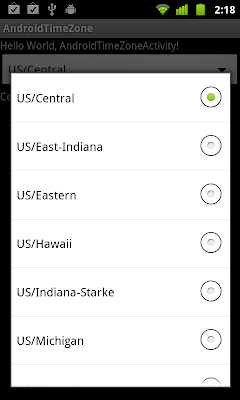
The java.util.TimeZone class represents a time zone, primarily used for configuring a Calendar or SimpleDateFormat instance.
The method getAvailableIDs() returns the system's installed time zone IDs. Any of these IDs can be passed to getTimeZone() to lookup the corresponding time zone instance.

Related Post:
- Get time zone where currently running, using TimeZone.getDefault()
The method getAvailableIDs() returns the system's installed time zone IDs. Any of these IDs can be passed to getTimeZone() to lookup the corresponding time zone instance.


package com.exercise.AndroidTimeZone;


import java.util.TimeZone;


import android.app.Activity;

import android.os.Bundle;

import android.view.View;

import android.widget.AdapterView;

import android.widget.AdapterView.OnItemSelectedListener;

import android.widget.ArrayAdapter;

import android.widget.Spinner;

import android.widget.TextView;


public class AndroidTimeZoneActivity extends Activity {


	Spinner spinnerAvailableID;

	TextView textTimeZone;


	ArrayAdapter<String> idAdapter;


   /** Called when the activity is first created. */

   @Override

   public void onCreate(Bundle savedInstanceState) {

       super.onCreate(savedInstanceState);

       setContentView(R.layout.main);


       spinnerAvailableID = (Spinner)findViewById(R.id.availableID);

       textTimeZone = (TextView)findViewById(R.id.timezone);


       String[] idArray = TimeZone.getAvailableIDs();

       idAdapter = new ArrayAdapter<String>(this, android.R.layout.simple_spinner_item, idArray);

       idAdapter.setDropDownViewResource(android.R.layout.simple_spinner_dropdown_item);

       spinnerAvailableID.setAdapter(idAdapter);


       spinnerAvailableID.setOnItemSelectedListener(new OnItemSelectedListener(){


			@Override

			public void onItemSelected(AdapterView<?> parent, View view,

					int position, long id) {

				// TODO Auto-generated method stub

				String selectedId = (String)(parent.getItemAtPosition(position));

				TimeZone timezone = TimeZone.getTimeZone(selectedId);


				String TimeZoneName = timezone.getDisplayName();

				int TimeZoneOffset = timezone.getRawOffset()/(60 * 60 * 1000);


				textTimeZone.setText(TimeZoneName + " : " +String.valueOf(TimeZoneOffset));

			}


			@Override

			public void onNothingSelected(AdapterView<?> arg0) {

				// TODO Auto-generated method stub


			}});

   }

}
<?xml version="1.0" encoding="utf-8"?>

<LinearLayout xmlns:android="http://schemas.android.com/apk/res/android"

   android:orientation="vertical"

   android:layout_width="fill_parent"

   android:layout_height="fill_parent"

   >

<TextView

   android:layout_width="fill_parent"

   android:layout_height="wrap_content"

   android:text="@string/hello"

   />

<Spinner

   android:id="@+id/availableID"

   android:layout_width="fill_parent"

   android:layout_height="wrap_content"

	/>

<TextView

   android:id="@+id/timezone"

   android:layout_width="fill_parent"

   android:layout_height="wrap_content"

   />

</LinearLayout>
Related Post:
- Get time zone where currently running, using TimeZone.getDefault()
Thursday, August 4, 2011
Prevent restart when the screen orientation has changed, by android:configChanges
Refer to the last exercise "Activity will be re-started when screen orientation changed"; if you don't want the activity re-start when the screen orientation has changed, you can set android:configChanges in AndroidManifest.xml, and handle the event manually by overriding the callback method onConfigurationChanged().

Please notce that it's not reommended by Google- Note: Using this attribute should be avoided and used only as a last-resort. Please read Handling Runtime Changes for more information about how to properly handle a restart due to a configuration change.
override onConfigurationChanged()
set android:configChanges in AndroidManifest.xml

Please notce that it's not reommended by Google- Note: Using this attribute should be avoided and used only as a last-resort. Please read Handling Runtime Changes for more information about how to properly handle a restart due to a configuration change.
override onConfigurationChanged()
package com.exercise.AndroidOrientation;

import android.app.Activity;
import android.content.pm.ActivityInfo;
import android.content.res.Configuration;
import android.os.Bundle;
import android.view.View;
import android.widget.Button;
import android.widget.Toast;

public class AndroidOrientationActivity extends Activity {

 String msg = "Default without changed";

   /** Called when the activity is first created. */
   @Override
   public void onCreate(Bundle savedInstanceState) {
       super.onCreate(savedInstanceState);
       setContentView(R.layout.main);

       Button buttonSetPortrait = (Button)findViewById(R.id.setPortrait);
       Button buttonSetLandscape = (Button)findViewById(R.id.setLandscape);
       Button buttonSetUnspecified = (Button)findViewById(R.id.setUnspecified);
       Button buttonShowMsg = (Button)findViewById(R.id.showMsg);

       buttonSetPortrait.setOnClickListener(new Button.OnClickListener(){

   @Override
   public void onClick(View arg0) {
    // TODO Auto-generated method stub
    setRequestedOrientation(ActivityInfo.SCREEN_ORIENTATION_PORTRAIT);
   }});

       buttonSetLandscape.setOnClickListener(new Button.OnClickListener(){

   @Override
   public void onClick(View arg0) {
    // TODO Auto-generated method stub
    setRequestedOrientation(ActivityInfo.SCREEN_ORIENTATION_LANDSCAPE);
   }});

       buttonSetUnspecified.setOnClickListener(new Button.OnClickListener(){

   @Override
   public void onClick(View arg0) {
    // TODO Auto-generated method stub
    setRequestedOrientation(ActivityInfo.SCREEN_ORIENTATION_UNSPECIFIED);
   }});

       buttonShowMsg.setOnClickListener(new Button.OnClickListener(){

   @Override
   public void onClick(View arg0) {
    // TODO Auto-generated method stub
    Toast.makeText(AndroidOrientationActivity.this,
            "msg:\n" + msg,
            Toast.LENGTH_LONG).show();
   }});

       Toast.makeText(AndroidOrientationActivity.this,
         "onCreate\n" + msg,
         Toast.LENGTH_LONG).show();

       msg = "Changed!";
   }

 @Override
 public void onConfigurationChanged(Configuration newConfig) {
  // TODO Auto-generated method stub
  super.onConfigurationChanged(newConfig);
  Toast.makeText(AndroidOrientationActivity.this,
         "onConfigurationChanged\n" + msg,
         Toast.LENGTH_LONG).show();
 }
}
set android:configChanges in AndroidManifest.xml
<?xml version="1.0" encoding="utf-8"?>
<manifest xmlns:android="http://schemas.android.com/apk/res/android"
     package="com.exercise.AndroidOrientation"
     android:versionCode="1"
     android:versionName="1.0">
   <uses-sdk android:minSdkVersion="4" />

   <application android:icon="@drawable/icon" android:label="@string/app_name">
       <activity android:name=".AndroidOrientationActivity"
                 android:label="@string/app_name"
                 android:configChanges="orientation">
           <intent-filter>
               <action android:name="android.intent.action.MAIN" />
               <category android:name="android.intent.category.LAUNCHER" />
           </intent-filter>
       </activity>

   </application>
</manifest>
Wednesday, August 3, 2011
Activity will be re-started when screen orientation changed
The code listed here show the default behavior of Android application; it will will destroyed and re-created once screen orientation changed.

next:
- Prevent restart when the screen orientation has changed, by android:configChanges
- onSaveInstanceState() and onRestoreInstanceState()
- EditText keep no change after orientation changed
- Retrieve old activity state for configuration change by overriding onRetainNonConfigurationInstance() method

package com.exercise.AndroidOrientation;

import android.app.Activity;
import android.content.pm.ActivityInfo;
import android.os.Bundle;
import android.view.View;
import android.widget.Button;
import android.widget.Toast;

public class AndroidOrientationActivity extends Activity {

String msg = "Default without changed";

   /** Called when the activity is first created. */
   @Override
   public void onCreate(Bundle savedInstanceState) {
       super.onCreate(savedInstanceState);
       setContentView(R.layout.main);

       Button buttonSetPortrait = (Button)findViewById(R.id.setPortrait);
       Button buttonSetLandscape = (Button)findViewById(R.id.setLandscape);
       Button buttonSetUnspecified = (Button)findViewById(R.id.setUnspecified);
       Button buttonShowMsg = (Button)findViewById(R.id.showMsg);

       buttonSetPortrait.setOnClickListener(new Button.OnClickListener(){

  @Override
  public void onClick(View arg0) {
   // TODO Auto-generated method stub
   setRequestedOrientation(ActivityInfo.SCREEN_ORIENTATION_PORTRAIT);
  }});

       buttonSetLandscape.setOnClickListener(new Button.OnClickListener(){

  @Override
  public void onClick(View arg0) {
   // TODO Auto-generated method stub
   setRequestedOrientation(ActivityInfo.SCREEN_ORIENTATION_LANDSCAPE);
  }});

       buttonSetUnspecified.setOnClickListener(new Button.OnClickListener(){

  @Override
  public void onClick(View arg0) {
   // TODO Auto-generated method stub
   setRequestedOrientation(ActivityInfo.SCREEN_ORIENTATION_UNSPECIFIED);
  }});

       buttonShowMsg.setOnClickListener(new Button.OnClickListener(){

  @Override
  public void onClick(View arg0) {
   // TODO Auto-generated method stub
   Toast.makeText(AndroidOrientationActivity.this,
           "msg:\n" + msg,
           Toast.LENGTH_LONG).show();
  }});

       Toast.makeText(AndroidOrientationActivity.this,
         "onCreate\n" + msg,
         Toast.LENGTH_LONG).show();

       msg = "Changed!";
   }

}
<?xml version="1.0" encoding="utf-8"?>
<LinearLayout xmlns:android="http://schemas.android.com/apk/res/android"
android:orientation="vertical"
android:layout_width="fill_parent"
android:layout_height="fill_parent"
>
<TextView
android:layout_width="fill_parent"
android:layout_height="wrap_content"
android:text="@string/hello"
/>
<Button
android:id="@+id/setPortrait"
android:layout_width="fill_parent"
android:layout_height="wrap_content"
android:text="Set Portrait"
/>
<Button
android:id="@+id/setLandscape"
android:layout_width="fill_parent"
android:layout_height="wrap_content"
android:text="Set Landscape"
/>
<Button
android:id="@+id/setUnspecified"
android:layout_width="fill_parent"
android:layout_height="wrap_content"
android:text="Auto Orientation"
/>
<Button
android:id="@+id/showMsg"
android:layout_width="fill_parent"
android:layout_height="wrap_content"
android:text="Show msg"
/>
</LinearLayout>next:
- Prevent restart when the screen orientation has changed, by android:configChanges
- onSaveInstanceState() and onRestoreInstanceState()
- EditText keep no change after orientation changed
- Retrieve old activity state for configuration change by overriding onRetainNonConfigurationInstance() method
Set Screen orientation programmatically
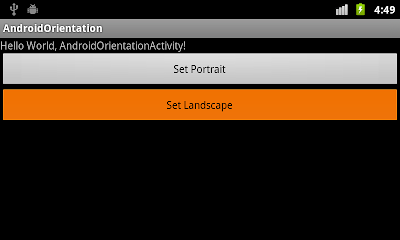
By calling setRequestedOrientation() method, we can set screen orientation programmatically.

Related:
- Activity will be re-started when screen orientation changed


package com.exercise.AndroidOrientation;

import android.app.Activity;
import android.content.pm.ActivityInfo;
import android.os.Bundle;
import android.view.View;
import android.widget.Button;

public class AndroidOrientationActivity extends Activity {
    /** Called when the activity is first created. */
    @Override
    public void onCreate(Bundle savedInstanceState) {
        super.onCreate(savedInstanceState);
        setContentView(R.layout.main);

        Button buttonSetPortrait = (Button)findViewById(R.id.setPortrait);
        Button buttonSetLandscape = (Button)findViewById(R.id.setLandscape);

        buttonSetPortrait.setOnClickListener(new Button.OnClickListener(){

   @Override
   public void onClick(View arg0) {
    // TODO Auto-generated method stub
    setRequestedOrientation(ActivityInfo.SCREEN_ORIENTATION_PORTRAIT);
   }});

        buttonSetLandscape.setOnClickListener(new Button.OnClickListener(){

   @Override
   public void onClick(View arg0) {
    // TODO Auto-generated method stub
    setRequestedOrientation(ActivityInfo.SCREEN_ORIENTATION_LANDSCAPE);
   }});
    }
}
Related:
- Activity will be re-started when screen orientation changed
Tuesday, August 2, 2011
View PDF file by starting activity with intent of ACTION_VIEW
By starting activity with intent of ACTION_VIEW, for "application/pdf", we can ask the installed PDF ready to open PDF file from our app.


package com.exercise.AndroidReadPDF;

import java.io.File;

import android.app.Activity;
import android.content.Intent;
import android.net.Uri;
import android.os.Bundle;

public class AndroidReadPDFActivity extends Activity {
   /** Called when the activity is first created. */
   @Override
   public void onCreate(Bundle savedInstanceState) {
       super.onCreate(savedInstanceState);
       setContentView(R.layout.main);

       String path = "/sdcard/AndroidUsersGuide-2.3.4.pdf";
       File targetFile = new File(path);
       Uri targetUri = Uri.fromFile(targetFile);

       Intent intent;
       intent = new Intent(Intent.ACTION_VIEW);
       intent.setDataAndType(targetUri, "application/pdf");

       startActivity(intent);
   }
}
Subscribe to:
Posts (Atom)